
How to optimise a Google Business Profile for local visibility
When someone searches for a tradesperson nearby, Google shows three local businesses first. This guide walks through five steps to optimise your Google Business Profile and improve your chances of appearing there, from set up and photos to reviews, posting and tracking result.
· 14 min read
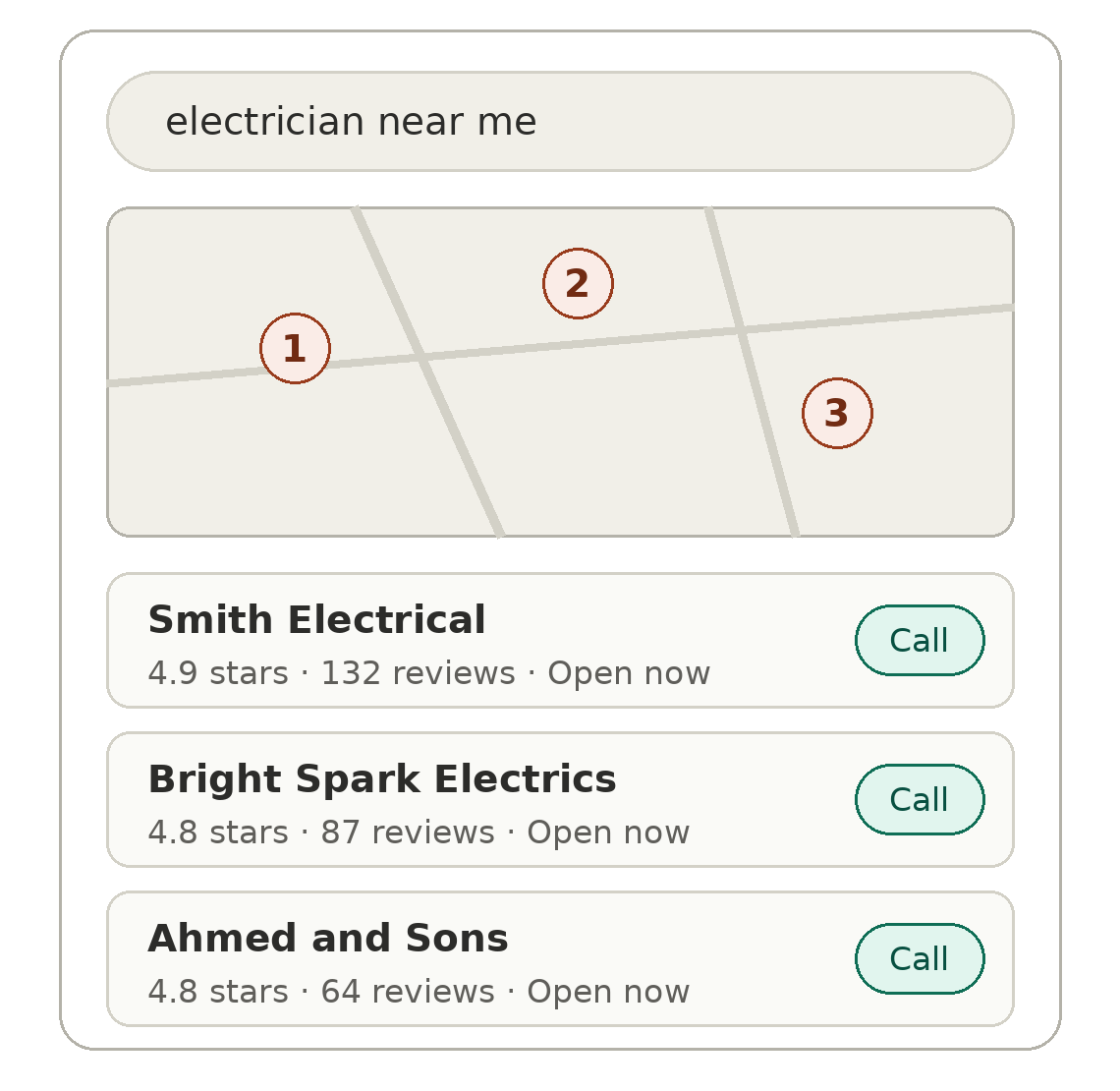
When a customer needs a local tradesperson, they rarely scroll through pages of search results. They type “electrician near me”, glance at the three businesses that rank on the map, and call the one that looks most trustworthy.
Miss those top three spots, and your competitors get the call.
That map listing is your Google Business Profile. It’s a free listing that appears in Google Search and Google Maps, showing your business name, services, reviews, photos, opening hours, location, and phone number in one place.
It matters because it often serves as your first impression. Customers can see your work, get directions, and call you without ever leaving Google. A complete, Search profile also tells Google that you are a relevant, trustworthy local business, which helps you appear higher in local results.
Yet many businesses set theirs up once and never touch it again.
In this guide, you will learn how Google decides who ranks locally, plus five practical steps to help your profile get found, trusted, and called.
Key takeaway
Google ranks local businesses on three factors: relevance (how well your profile matches the search), distance, and prominence (reviews, rating, mentions). You can influence relevance and prominence, but not where the searcher is or who your competitors are. Because of that, checking your own ranking from your phone isn't reliable.
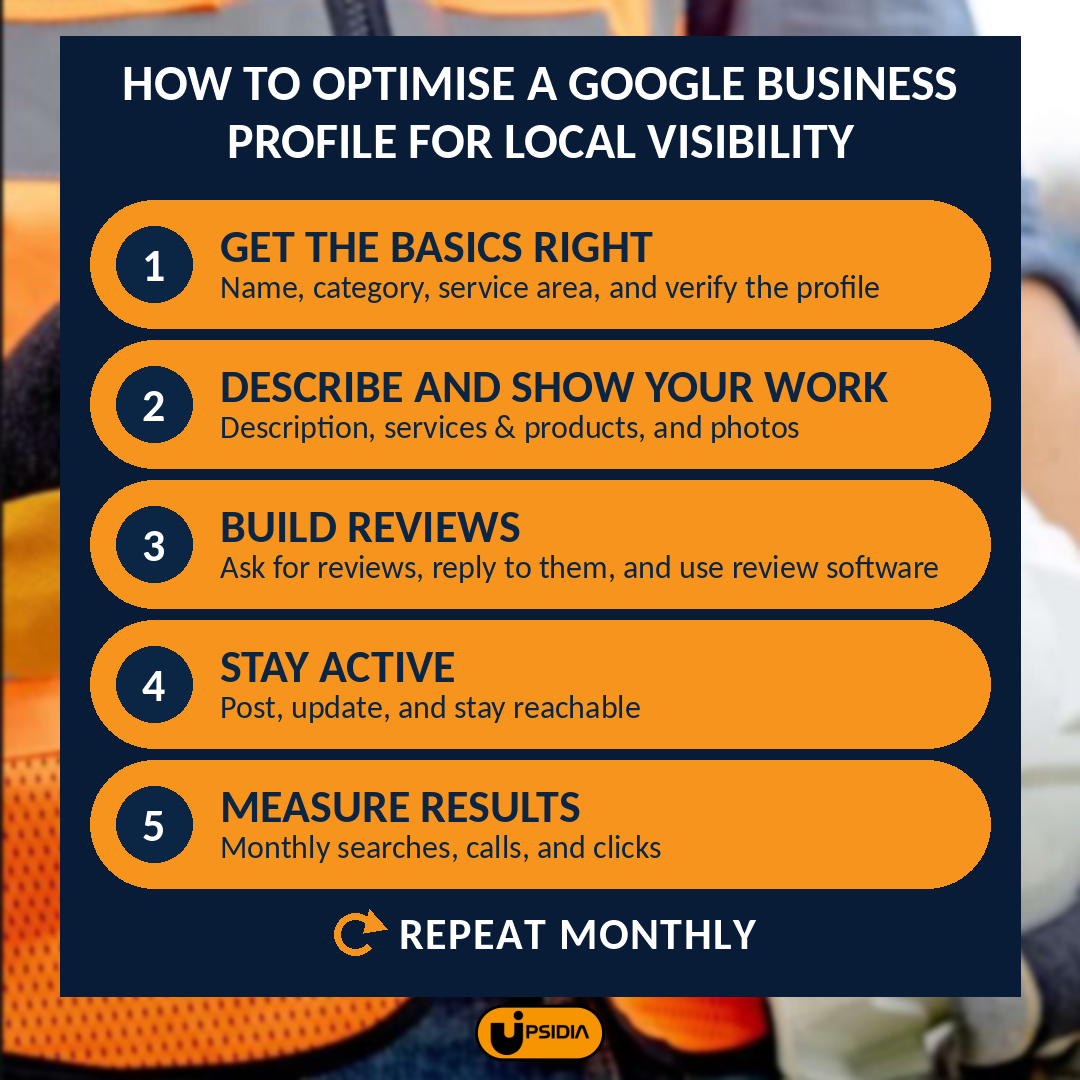
The five steps the guide recommends are:
The basics: claim the profile, use your real business name, choose a specific primary category, set an accurate address or service area (max 20), and verify.
Describe and show your work: write a description with the key points in the first 244 characters, list services individually, and upload real photos.
Reviews: ask right after each job using a direct link, reply to every review, and never incentivise or fake them.
Stay active: post every week or two, review your details monthly, and keep contact info current.
Measure: check searches, calls, and website clicks monthly, and adjust.
How Google decides who ranks locally
When someone searches for a local service, Google doesn't pick the biggest business or one with the best website. It looks at three main factors: relevance, distance, and prominence.
Relevance
Relevance is how well your profile matches what the customer searched for. Google uses your business categories, services, description, and reviews to work out what you do.
If someone searches “boiler repair” and your profile clearly lists that service, you are a stronger match than a business with a vague or incomplete match.
Distance
Distance is how close your business is to the business is to the person searching, or the area they have named in their search. You can’t move your premises to rank better, but you can make sure your address or service area is accurate so Google knows exactly where you operate.
Prominence
Prominence is how well known and trusted your business appears to be. Google looks at the number and quality of reviews, your average rating, and how often your business is mentioned on customers' web, including directories and websites that link to you. Strong, recent reviews and consistent details help build this over time.
What you can and can’t control
Some parts of local ranking are simply out of your hands, while some others can be actively improved. These include;
What you can control
Relevance: your categories, services, description, and keywords.
Prominence: your reviews, rating, photos, activity, and mentions across the web.
Accuracy: your address, your service area, and opening hours.
What you can’t control
Where the customer is searching from. Local results are personalised to the searcher’s location, so there is no single “rank” for your business. You might appear in the top three for customers near your premises and drop out of view a few miles away. Results can also vary with the exact search wording, the time of day, and the device being used.
Who your competitors are. Who you are up against changes from one area to the next.
Because of this, checking your ranking from your own phone or office isn’t a reliable test. For a truer picture, search from different areas you serve, or use a local rank checker. The five steps that follow focus on the things you can influence.
Step 1: Get the basics right
Before you worry about posts or photos, make sure the core details about your business are complete and accurate. These are the first things Google reads to decide what you do and where you operate.
Find and claim your profile
Your business may already have an existing profile, even if you have not created one. Creating a duplicate can cause confusion later. Here is how to approach it:
Search for your business: look it up on Google search and Maps by name and address.
Claim it if it exists: follow the prompts to verify that you own it.
Use the right account: sign in with the Google account tied to your business domain, not a personal one, so you can keep control of the profile if the staff changes.
Business name
Use your real business name exactly as it appears on your social media pages and website. Adding keywords or locations, for example, “Smith Plumbing/Cheap Plumber Leeds”, can get your profile suspended, so keep it clean.
Categories
Your primary category is one of the strongest relevance signals you have, so choose the most specific option that describes your main service. Then add secondary categories for other work that you do. If your business covers several types of work, it is a good idea to see what your competitors are using. Here is how you research it:
Check competitors’ categories: look at the primary and secondary categories used by the businesses ranking above you.
Use websites like GMBSpy Chrome extension and Sterling Sky to check the secondary categories your competitors are using. Sterling Sky keeps a running list of all the Google Business Profile category changes and it's advisable to bookmark it.
Address or service area
If you have a physical place where you hold your business, add the address. If your business serves customers both at your physical location and at your customers location, enter both a business location and a service area. Only enter the city’s postal codes or regions you actually serve. The maximum number of service areas per business listing is 20.
Google recommends that the boundaries of your overall area should not extend further than about two hours of driving from where your business is based.
Contact details and hours
Accurate details build trust and prevent your customers from going to your competitors. Check that each of these is correct:
Phone number: use one you answer, ideally a local number.
Website: this is optional but relevant. Include a link to your homepage or a relevant local landing page.
Opening hours: include special and holiday hours, and your emergency availability if you offer it.
Submit and verify
Once all your details are entered, submit your profile. Google then chooses the method to verify your business listing which can either be by postcard, email, phone calls, text message or videos.
The available methods for verification depend on things like business category, public information, region support, hours, and volumes.
Step 2: Describe and show what you do
Once the basics are in place and you are waiting for the verification to be complete, do not edit the business name, category, address of the business, or request for a new code.
This is the best time to double check that all the information is correct. You could use citation tools like BrightLocal to find instances of online mentions where your business name, address, and phone number lacks consistency. Inconsistent details confuse Google and weaken your prominence.
You could also add the following while you wait for your business listing to go live:
Write a clear business description
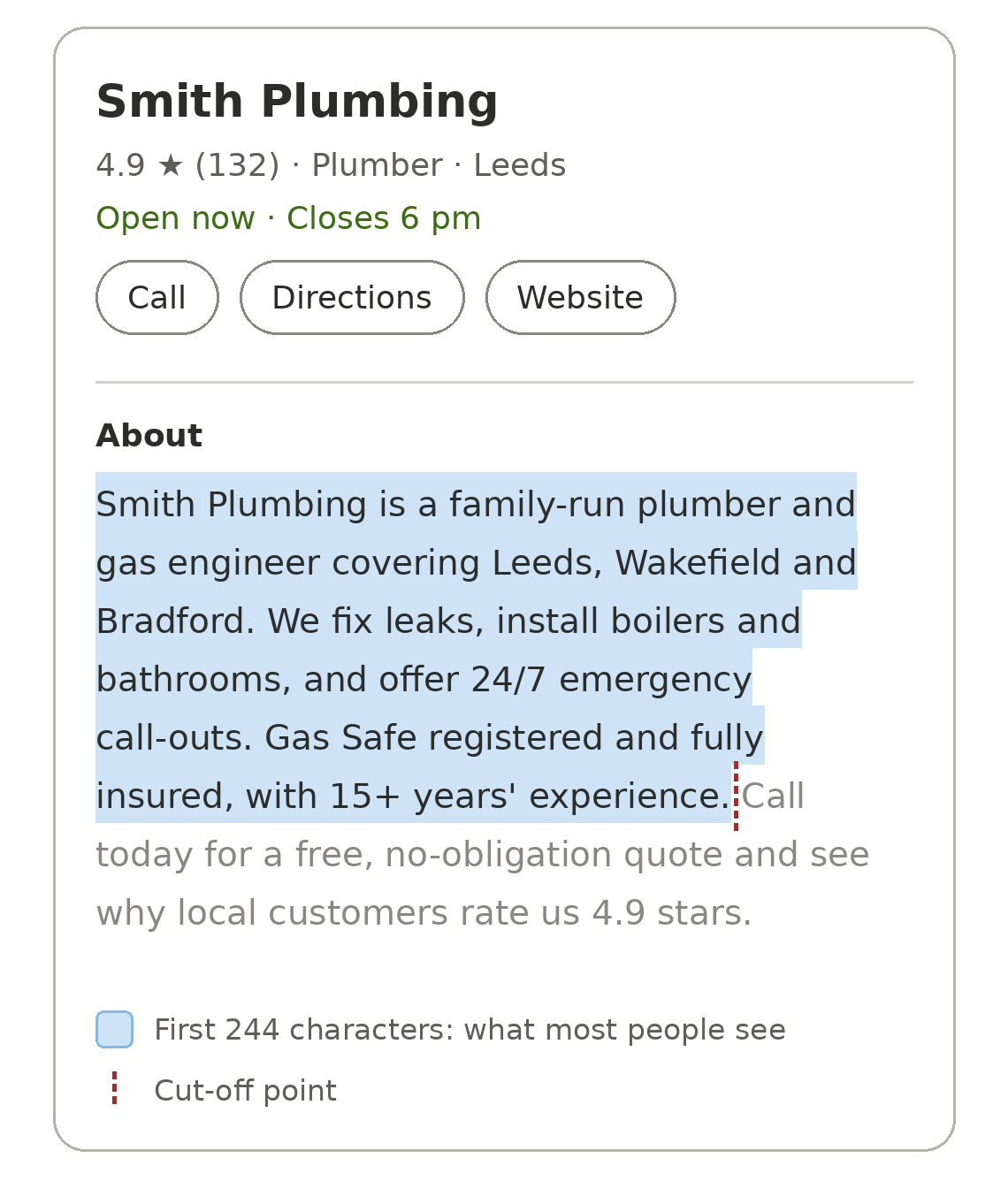
You have up to 750 characters, but only the first 244 or so characters show before customers click for more, so put the most important information first. Cover what you do, what sets you apart,your history, and anything else that’s going to be helpful for customers.
Don’t use URLs, HTML codes, or exceed the 750 characters in the description field.
Add your services and products
Listing your services tells Google exactly which searches you should appear for. Add each one separately so nothing is missed. These include:
Service or product name: use the words customers actually search for, such as “boiler repair” or “fuse box upgrade”.
Assign the product to a category.
Short description: one or two sentences on what’s included.
Add a high-quality photo using a solid color background.
Price or price range: optional, but it helps set expectations and filters out poor-fit enquiries.
Choose a button CTA which links to the relevant URL on your website.
Upload photos that prove your work
Profiles with real photos tend to get more calls and direction requests, because images build trust before a customer has spoken to you. Aim to cover a range of subjects. The following are worth adding:
Your work: completed jobs and before-and-after pictures.
Your team: staff in uniform or on site.
Your vehicles and premises: so customers know what to look for.
Your logo and cover photo: to keep your profile recognisable.
Use clear, original photos rather than stock images, and add new ones regularly. You could also encourage customers to take photos at your location and upload. This is a good tactic to get good engagement with your business listing.
Step 3: Build reviews that bring in work
Reviews are one of the strongest prominence signals you have, and they are often what brings a customer from browsing to calling. Both the number of reviews and how recent they are matter.
Ask at the right time
The best time to ask for a review from your customer is immediately after completing a job for them, because the experience is still fresh in their mind. This process should be made as easy as possible by sharing your direct review link rather than asking them to search for your profile to leave their feedback. Here are a few simple ways to send it:
By text or WhatsApp: send the link as soon as the job is signed off.
By email: add it to your invoice or follow-up message.
By QR code: print one on your business cards, quotes, or vans.
Ask every customer, not just the ones you expect to be positive. Google discourages only requesting reviews from happy customers.
Reply to every review
Responding to reviews shows potential customers that you value their feedback, and signals to Google that your profile is active. Keep your replies short, personal and professional.
Here is how to handle both kinds of reviews:
Positive reviews: thank the customer by name and mention the job or service, which also reinforces relevance naturally.
Negative reviews: respond calmly and promptly, acknowledge the issue, investigate what the problem was if you don’t have direct experience of what happened, and offer to resolve it offline. Never argue in public, because potential customers read your exchange more than the complaint.
Use review management to stay on top of it
Asking for reviews and replying to them gets harder as your workload grows, so a simple system keeps it consistent. This can be as basic as a monthly routine or as advanced as dedicated review management software. Here is how to set it up:
Notifications: turn on email or app alerts for new reviews so you can reply within a day or two.
A repeatable process: make the review request part of your sign-off process for every completed job, so it happens every time rather than when you remember.
A tracking sheet: record whom you have asked, who has responded, and which reviews still need a reply.
If you are handling a high volume of jobs, review management software can automate much of this. Look for features like these:
Automated requests: texts or emails that send your review link after each job.
A single inbox: new reviews from Google and other platforms in one place.
Reply templates: quick starting points you can personalise before posting.
Reporting: your review count, average rating, and response time over time.
What not to do
Shortcuts can get reviews removed or your profile suspended, so avoid these practices:
Offering discounts or gifts in exchange for reviews.
Writing or buying fake reviews, including ones from friends and family members who haven’t used you.
Reviewing your competitors to damage their rating.
If you receive a review that breaks Google’s rules, you can flag for a removal, but you can’t delete it yourself.
Step 4: Stay active on your profile
An active profile tells Google and your customers that your business is open, reliable, and still operating. Little and often work updates are better than a big update once a year.
Post regularly
Google Business Profile posts let you share updates directly to your listing. Aim for something fresh every week or two. Here are some ideas that work well for local service businesses:
Recent jobs: a short write-up with a photo of completed work.
Seasonal reminders: for example, boiler servicing before the winter begins.
Offers and availability: for example, 10% off for first-time customers’ garden maintenance until the end of the month.
Team news: new staff, accreditations, or awards.
Keep your details current
Check your profile every month so nothing goes stale. Here is what to review:
Hours: update holiday and special hours before they happen.
Services: add new services and remove the ones you no longer offer.
Photos: upload recent images of your work.
Description and attributes: make sure they reflect how your business runs presently.
Make it easy to contact you
Google removed the chat feature from Google Business Profile on July 31, 2024, though customers can still find and contact your business through Google Search and Maps. That makes it more important that your contact details are complete and easy to use.
Here is what to check:
Phone number: use one you answer, and make sure it is correct.
Website links: send customers to a page that makes it easy to get in touch.
Other channels: if you use WhatsApp or email for enquiries, mention it on your website so customers know how to reach you.
Step 5: Measure your results
Checking your numbers shows what is working and what isn’t. Google’s performance report shows how people discover your profile on Search and Maps and what they do once they find it.
What you can see
Only profile owners and managers can view the report, and you need to be signed into the Google Account linked to your profile. The following interactions can be tracked:
Searches: the search terms people used to find your business,
Calls: the number of clicks on the call button on your profile.
Website clicks: the number of clicks on your website link.
Calls are counted as clicks on the call button, not completed phone calls, so compare the figure against the calls you actually get.
How to use it
Looking at the numbers only helps when you act on them, and here is how you can make it a simple monthly routine:
Set a date range: compare this month with the last to spot changes.
Check your search term: see whether people are finding you for the services you want to be known for.
Download your data: export it to a spreadsheet to keep a record over time.
Adjust your profile: if a service you offer isn’t showing up in searches, make sure it’s listed and described properly.
Review your figures once a month and note what changes since you last updated your profile. If calls or website clicks rise after you add photos or services, do more of it.
Common mistakes to avoid
Even a well-built profile can lose ground through a few easy-to-make errors. Here are the ones to watch out for:
Stuffing your business name: your name should be the real-world name used consistently on your signage, website, stationery, and with customers. Adding unnecessary information is not permitted and could result in your profile being suspended.
Adding keywords or URLs to your address: address lines should only describe your business’s physical location, not URLs or keywords.
Using a made-up location: create your profile for your actual, real-world location.
Letting your profile go quiet: no new photo, posts, or updates for months suggests the business may no longer exist.
Leaving hours out of date: wrong opening times, or missing holiday hours, send customers to a closed door and lead to bad reviews.
Choosing the wrong categories: a vague or incorrect primary category weakens your relevance for the searches that matter. Pick the most specific option for your main service.
Ignoring reviews: unanswered reviews, especially negative ones, tell customers you are not paying attention. Reply to each one promptly and professionally.
Set a reminder to review this list every quarter. Most of these mistakes are quick to fix once they are noticed.
Conclusion
A strong Google Business Profile won’t happen overnight, but it doesn’t need to be complicated. Get the basics right, show and describe your work properly, collect and reply to reviews, stay active and check your results each month. Do this consistently, and you give Google every reason to show your trade business to customers searching in your area.
Want it done for you? Upsidia can help. Get in touch today and find out how.
Frequently asked questions
Is Google Business Profile free?
Yes. Creating and managing a profile costs nothing. You only pay if you choose to run Google Ads or use a third-party tool alongside it
How long does it take to rank higher on Google Business Profile?
There's no fixed timeline. Results depend on how competitive your area is, how complete your profile is and how many reviews you have. Many businesses notice small improvements within a few weeks of updating their profile, but building strong rankings is an ongoing process.
Why do I rank differently when I search for my business?
Local results are personalised to the searcher's location, so your position changes depending on how close someone is to your business. Checking from your own phone or office isn't a reliable test, so try searching from different areas you serve.
How many photos should I add to my Google Business Profile?
There's no set number. Start with around 10 clear, original photos of your work, team and premises, then add new ones regularly
Can I rank without a physical shop?
Yes. If you travel to customers, you can hide your address and list the areas you serve instead. Only include areas you genuinely cover.
Do I need to a website to have a profile?
No, but linking one helps customers learn more about you and gives them another way to get in touch.
Can customers still message me through my profile?
No. Google removed the chat feature from Business Profile on July 31, 2024. Make sure your phone number and website link are correct, so customers can still contact you easily.
Want more customers without doing the marketing yourself?
Tell us about your business and we will show you what is holding it back online. No obligation.
Contact us →One useful marketing idea for your trade, straight to your inbox
No spam, no selling your data. Unsubscribe with one click.
Related articles

Social media marketing tactics for local service businesses
Social media can turn local browsers into booked jobs. Discover practical tactics for choosing the right platform, creating trusted contents, attracting nearby customers, and tracking which posts bring in enquiries.
· 20 min read

Best Free Quote Templates for Tradespeople and Small Business Owners
Not sure how to put together a proper quote? This guide walks through manual templates, online quoting software, and everything a good quote should include, plus examples for small and large jobs.
· 7 min read

How to Grow Your Trade Business in the UK
Growing a trade business takes more than finding new customers. Learn practical ways to attract new business, retain existing customers, increase repeat work, and build a stronger foundation for sustainable growth.
· 23 min read